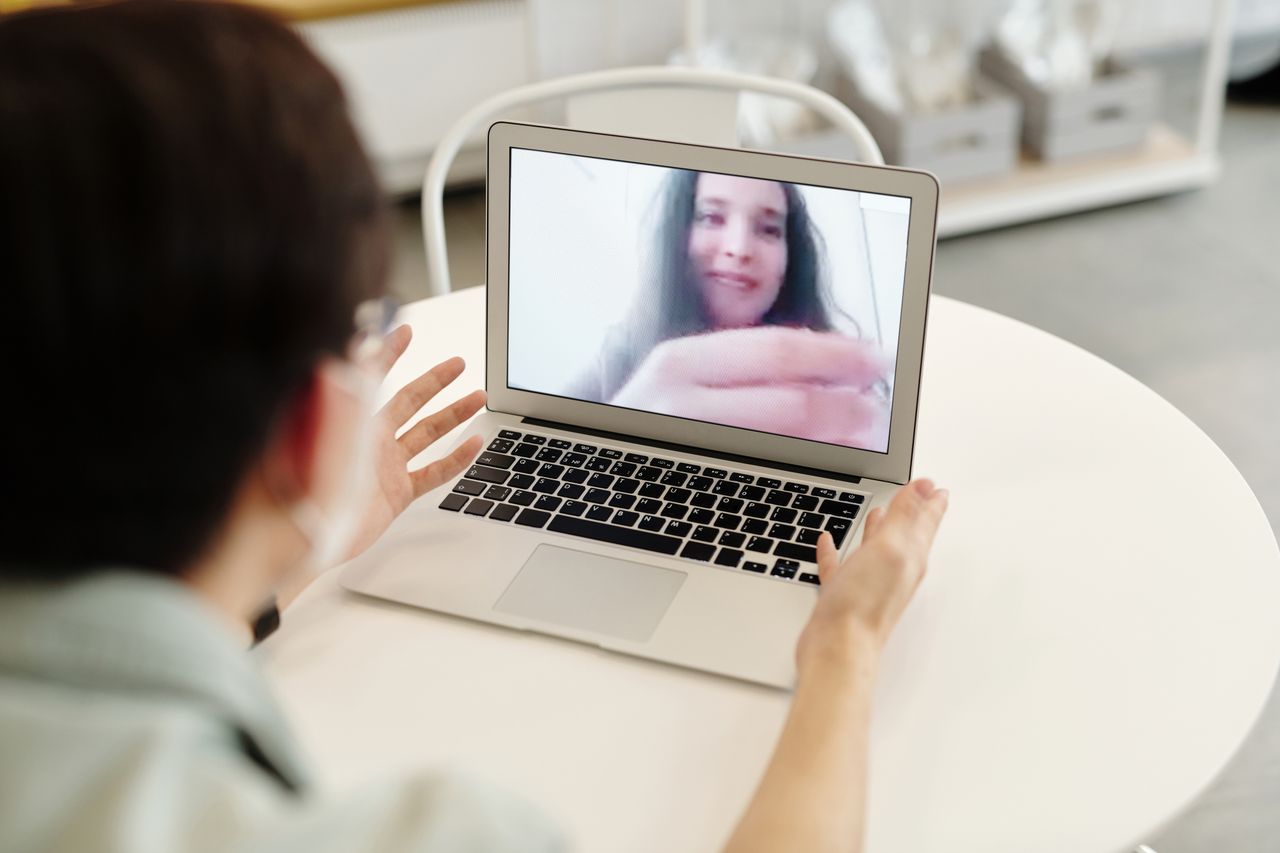
Screen sharing involves both what you intend to show and what might appear beside it. When one document is enough, sharing its window can limit the visible area. It does not remove the need to prepare: private tabs, filenames, or other content can still appear inside that window.
Prepare the working view
Open the required document and close unrelated content in the same window. A browser window with many tabs may still expose their titles. A separate prepared window is often easier to manage for a demonstration. Set a readable view so participants do not need constant changes of zoom to follow the text.
Check whether another application will be needed during the explanation. Plan that transition rather than spontaneously switching to the entire desktop. If a file picker will appear, inspect which folder names or recent files it might reveal before the session begins.
Confirm the shared area
Select the intended window in the meeting application and observe its sharing indicator. Microsoft Teams, for example, distinguishes screen sharing from window sharing. The exact interface depends on the application and platform, so do not rely solely on a memory from another device.
Ask for a brief confirmation at the start that the correct content is visible. Pay particular attention to presenter view and multiple monitors. The document open in front of you is not automatically the view the audience receives. If sound is required, select and test the appropriate audio-sharing function separately.
Stay attentive during and after sharing
Stop or pause sharing before looking for private information. A briefly visible document can reveal useful content even if it is immediately closed again. Adjust notifications in advance instead of assuming the application will hide everything automatically.
After the final item, stop sharing explicitly. Check the status indicator before moving to email or other personal applications. For recurring demonstrations, keep a short list of the windows required. It keeps the sequence focused and reduces improvised transitions in which the wrong view is easily selected. This preparation is especially helpful when several similar documents or browser profiles are open on the same computer.