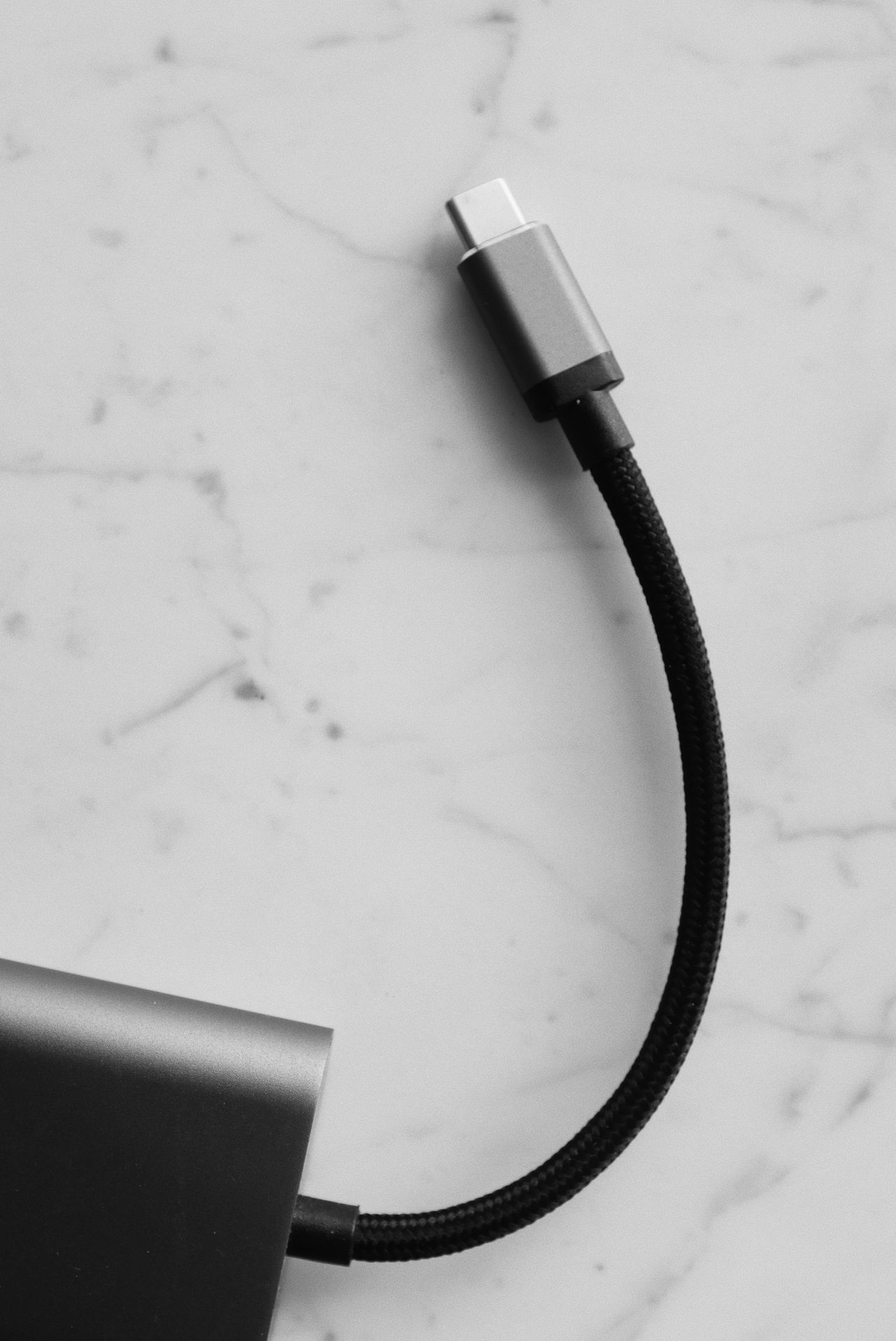
A cable fits the socket and charges a device, yet the connected display stays dark. That apparent contradiction arises because USB-C describes a connector shape first. The functions supported by a particular port and cable need additional information. Reading those properties separately helps avoid unsuitable purchases and unnecessary chains of adapters.
Write down three separate needs
Start with what the connection must do. A keyboard has different requirements from a fast external drive. A monitor needs a supported display connection. Charging a laptop requires the power supply, cable, and computer to support the necessary power together. Successfully charging headphones does not establish that the same arrangement suits a laptop.
Write those requirements down before choosing a cable. A portable monitor might need both video and power, while a backup drive primarily needs appropriate data capability and connectors. A dock combines several requirements. The most prominent number on the package does not necessarily describe all of them.
Interpret the labels
A watt rating describes power capability, not file-transfer speed. A gigabit-per-second rating describes data capability, not charging power. Actual transfer speed also depends on the devices at both ends and their connection. The drive itself and the kinds of files being copied affect the results of a transfer task as well.
USB-IF uses certification markings that distinguish cable power and data capabilities. Still read the specific product description. Older cables, manufacturer-specific labels, and different generations coexist. Connector color or a particularly thick cable is not a dependable description of what the connection can do.
Consider the whole path
When using a dock, the path includes the laptop port, host cable, dock, output cable, and destination device. One capable component does not remove the limitations of the others. Record model names when a function fails, and where possible test a known suitable connection without additional intermediate adapters.
Label cables whose purpose you have established, such as “desk monitor” or “phone charging,” and retain their specifications. That is more useful than guessing from the plug later. Do not include damaged cables in further comparison tests. Replace them, and follow the manufacturer's guidance if a connection becomes unusually hot.
Apply the distinction to a purchase
Suppose an existing cable charges a laptop but an external SSD runs much slower than expected. A higher-powered charger is not automatically the answer. Examine the cable's data capability and the connection path first. Conversely, a cable advertised for fast data does not necessarily solve a charging problem. Separate notes lead to a specific compatibility question instead of random replacement of every component.